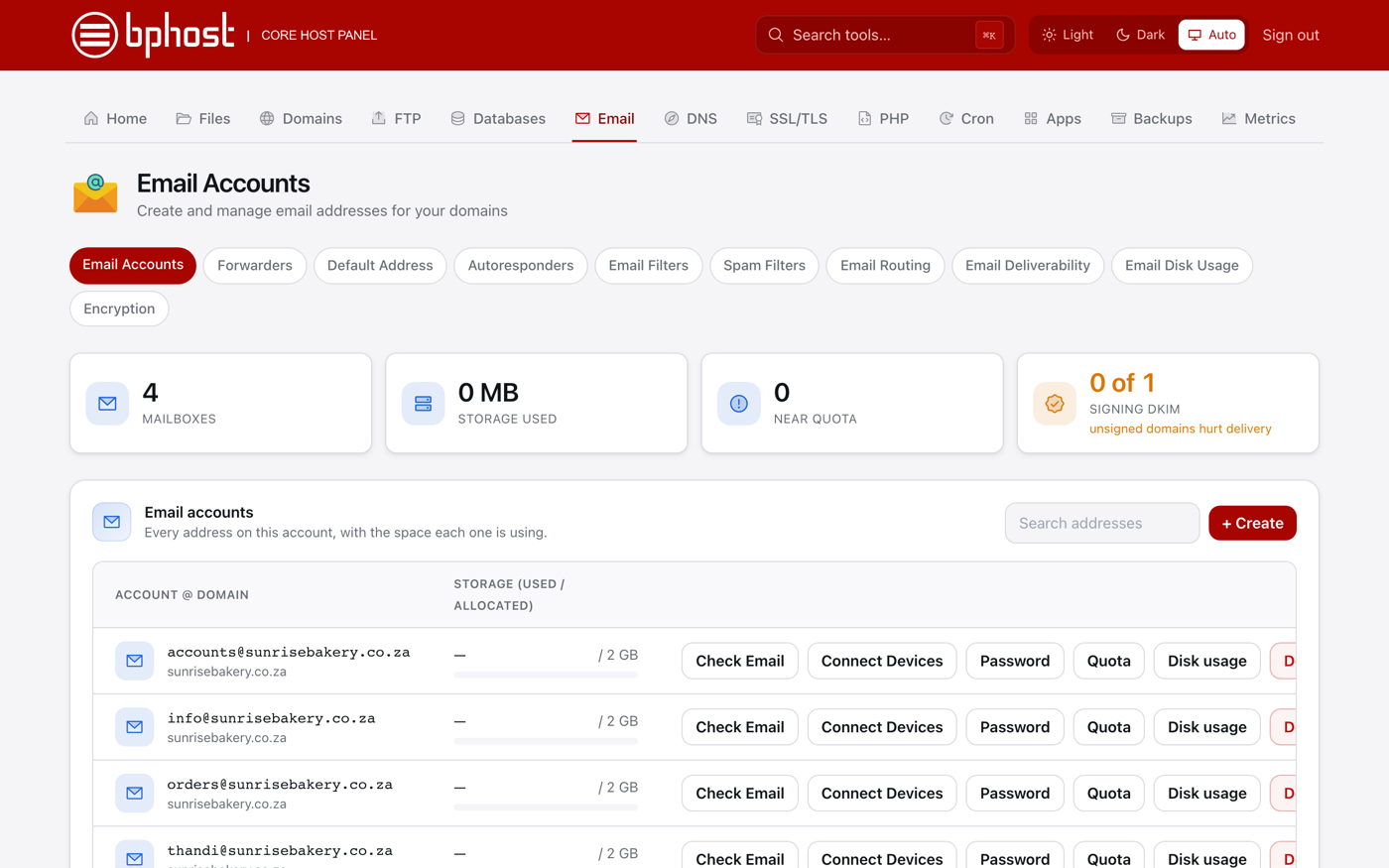
How to create an email account
You can create email addresses at your own domain (like you@yourdomain.co.za) in under a minute from CHPanel, under Email Accounts.
Create the mailbox
- Sign in at https://chpanel.bphost.biz with the email address on your hosting account and your CHPanel password (both are in your welcome email).
- Click the Email tab, then Email Accounts.
- Click + Create.
- Pick your domain and type the part before the @ (for example info).
- Set a strong password — the password generator will make a good one — and a storage quota in MB. The default is 1024 MB (1 GB); enter 0 for unlimited.
- Save the form. The new address appears in the list and is ready to use straight away.
Using your new mailbox
Next to each address you will find Check Email, which opens webmail already signed in, and Connect Devices, which shows the settings for Outlook, Apple Mail or your phone. See our webmail and email set-up guides for the details.
Tip
Use a strong, unique password for every mailbox. To change it later, return to Email Accounts and click Password next to the address. Stuck? Open a support ticket.