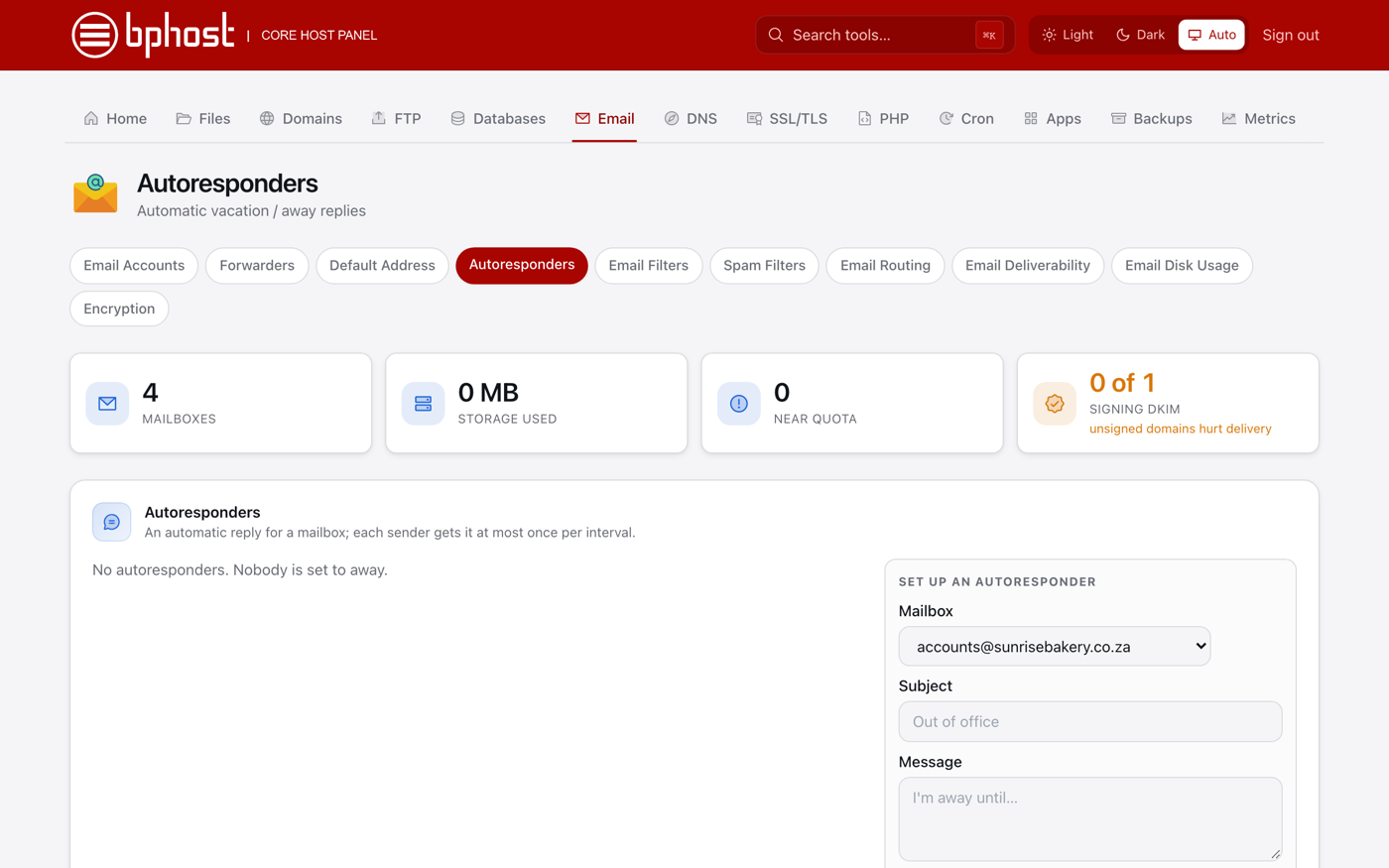
How to create an autoresponder
An autoresponder sends an automatic reply to anyone who emails a mailbox — perfect for "out of office" or "thanks, we will be in touch" messages.
Set one up
- Sign in at https://chpanel.bphost.biz with the email address on your hosting account and your CHPanel password (both are in your welcome email).
- Click the Email tab, then Autoresponders.
- Under Set up an autoresponder, pick the Mailbox it should reply from.
- Type a Subject and the Message people will receive.
- Optionally set a start date and an end date — useful for leave, so the reply switches itself off when you are back.
- Save the autoresponder. It is active straight away, or from the start date you chose.
Tips
- Each mailbox can have one autoresponder at a time.
- Keep it short: say when to expect a real reply, or who to contact in the meantime.
- Set an end date rather than relying on memory to switch it off.
- Test it by emailing the mailbox from another address and waiting for the reply.
Trouble?
If the reply is not going out, check that the right mailbox is selected and that the start date is not in the future. Still stuck? Open a support ticket.