How to check your disk and bandwidth usage
Keeping an eye on your disk space and bandwidth helps you avoid surprises and know when it is time to upgrade.
Check your disk usage
- Sign in to CHPanel.
- On the Home tab, look at the Statistics box in the right-hand column. Account Disk shows how much of your plan's space you are using.
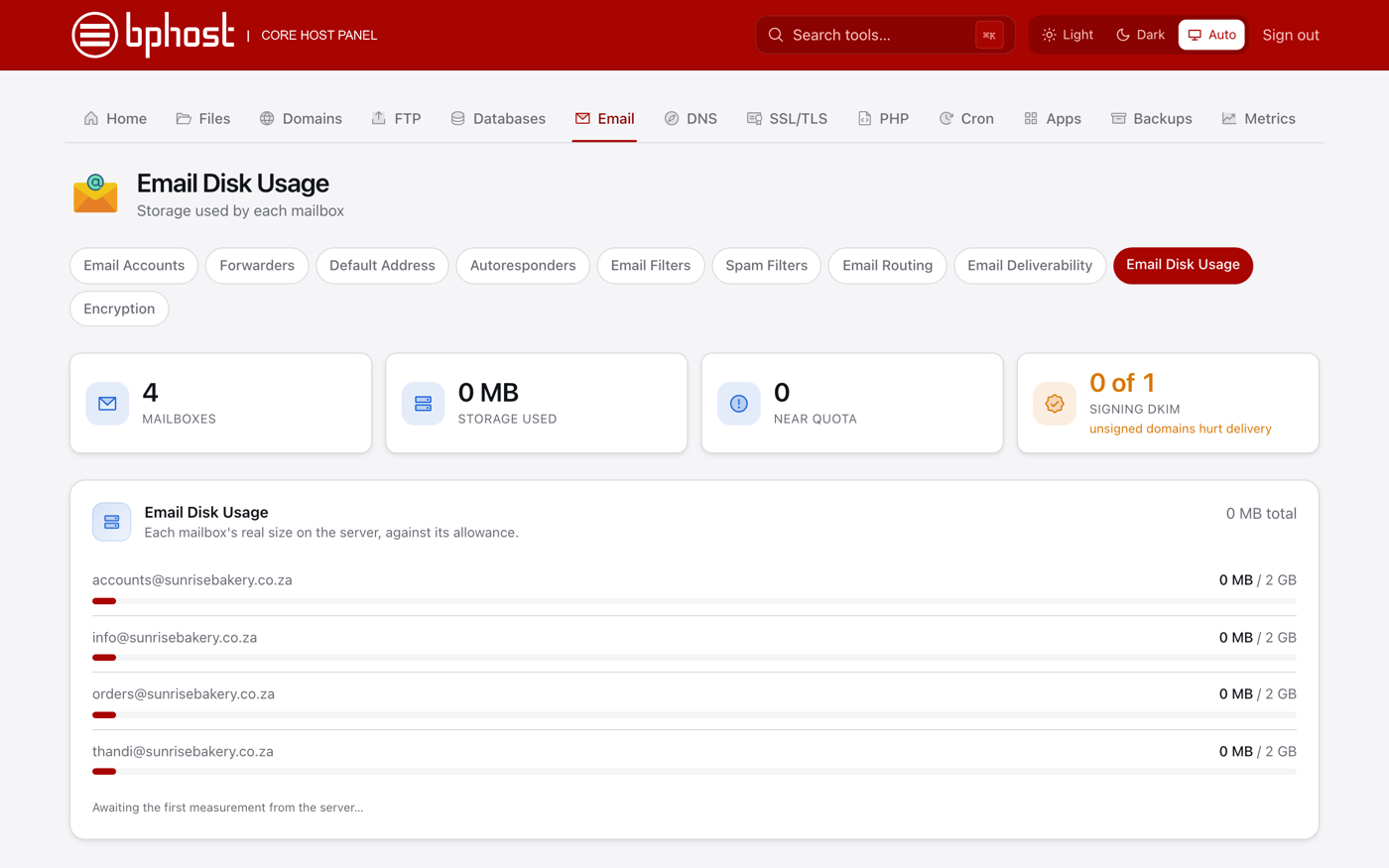
- For email, open Email → Email Disk Usage to see the size of each mailbox and its folders.
Check your bandwidth
- Open the Metrics tab.
- Bandwidth shows the traffic your sites served over the last 30 days. Requests and errors shows how many requests came in and how many ended in 4xx or 5xx errors.
What uses space?
- Website files and images in public_html and your addon-domain folders.
- Email — large mailboxes add up fast. In Email Disk Usage, click Manage on a folder to delete old or large messages or empty Trash and Junk; you preview what will go before confirming.
- Databases, and old exports or zip files left lying in File Manager.
Running low?
Delete files you no longer need in File Manager, clean up mailboxes, or open a support ticket to upgrade your plan. High bandwidth is usually large images or lots of traffic — optimising images helps.