How to set up a cron job
A cron job runs a script automatically on a schedule — handy for WordPress tasks, imports, clean-ups or any recurring job.
Create a cron job
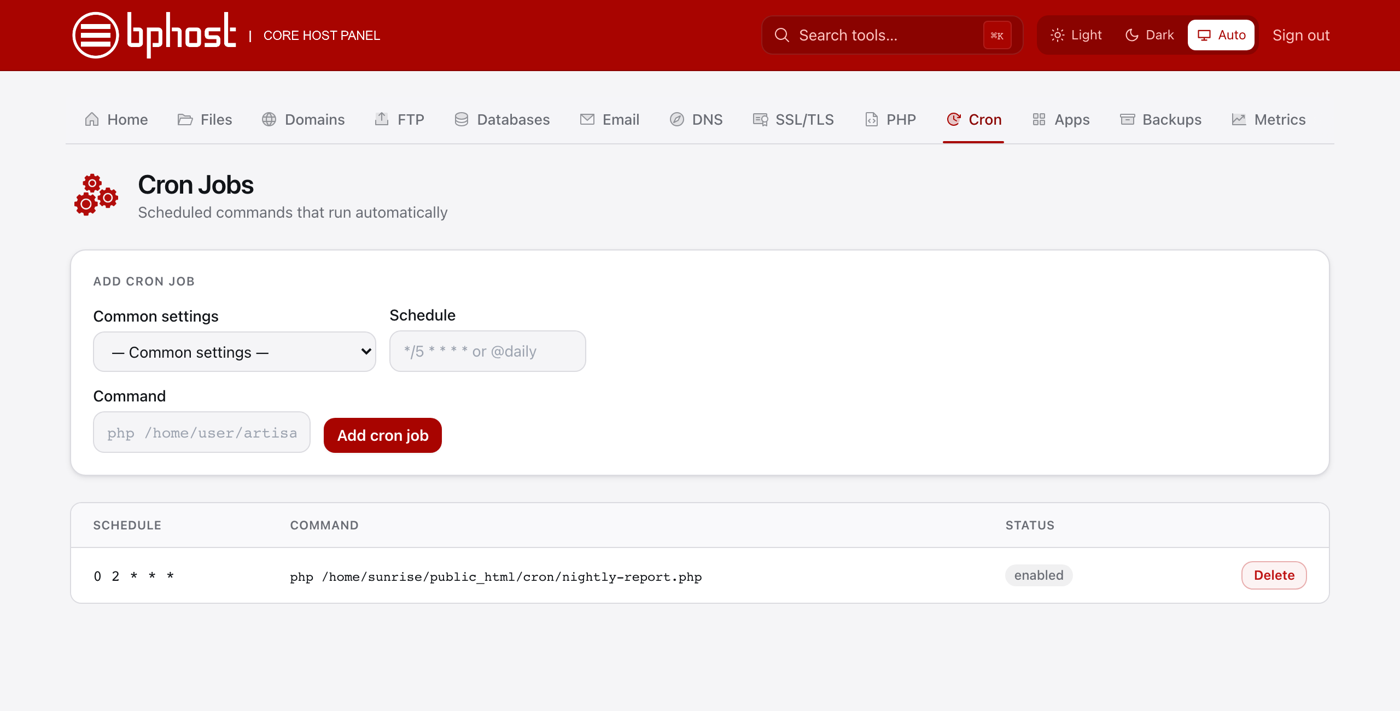
- Sign in to CHPanel and open the Cron tab (also under Advanced → Cron Jobs on the Home page).
- Under Add cron job, pick how often it should run from the Common settings dropdown (for example once a day or hourly). This fills in the Schedule as a cron expression such as 0 2 * * * (2 am every day). You can edit it by hand if you know cron syntax.
- Enter the Command to run.
- Click Add cron job.
Your job appears in the list with its schedule, command and status. To stop it, click Delete on that row.
Common commands
To run a PHP script in your site: php /home/yourusername/public_html/cron/nightly.php — replace yourusername with your account username (shown as Current User on the Home page) and the path with your script. For a WordPress cron, your plugin or developer will give you the exact command.
Tips
- Do not schedule jobs more often than you need — every minute is rarely necessary and slows your site.
- Make sure the script works before you schedule it, so you are not running a broken job every night.
- Unsure of the command? Open a support ticket and we will help.