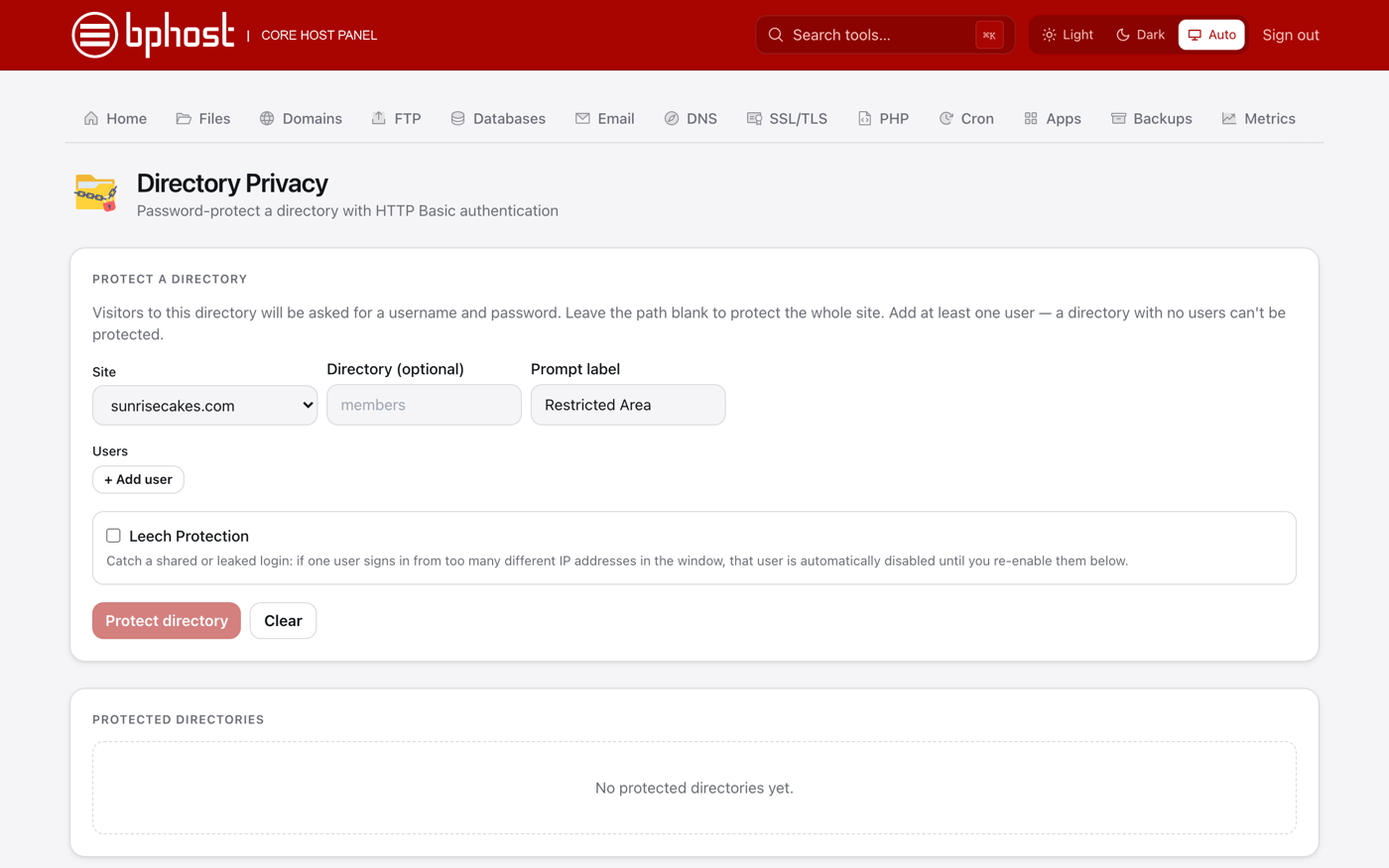
How to password-protect a folder
Directory Privacy puts a username and password in front of a folder on your site — or the whole site — handy for staging areas, client previews and private files.
Protect a directory
- Sign in at chpanel.bphost.biz with your hosting account email address and CHPanel password, then open Files → Directory Privacy.
- Under Protect a directory, choose the Site.
- Type the Directory to protect, e.g. private or staging. Leave it blank to protect the whole site — ideal while you are still building it.
- Give it a Prompt label such as "Restricted Area"; browsers show this on the login box.
- Add one or more Users — a name and a password for each person who may enter.
- Click Protect directory.
How it works
Anyone opening that folder now gets a browser login prompt and must enter one of the usernames and passwords you set. Everything inside the folder, including subfolders, is covered. Come back to Directory Privacy at any time to manage the folders you have protected.
Tip
This is a simple lock for a whole area, not a login system for your app — WordPress and other apps keep their own user logins. Want to protect a folder that does not appear, or remove a protection you cannot find? Open a support ticket.