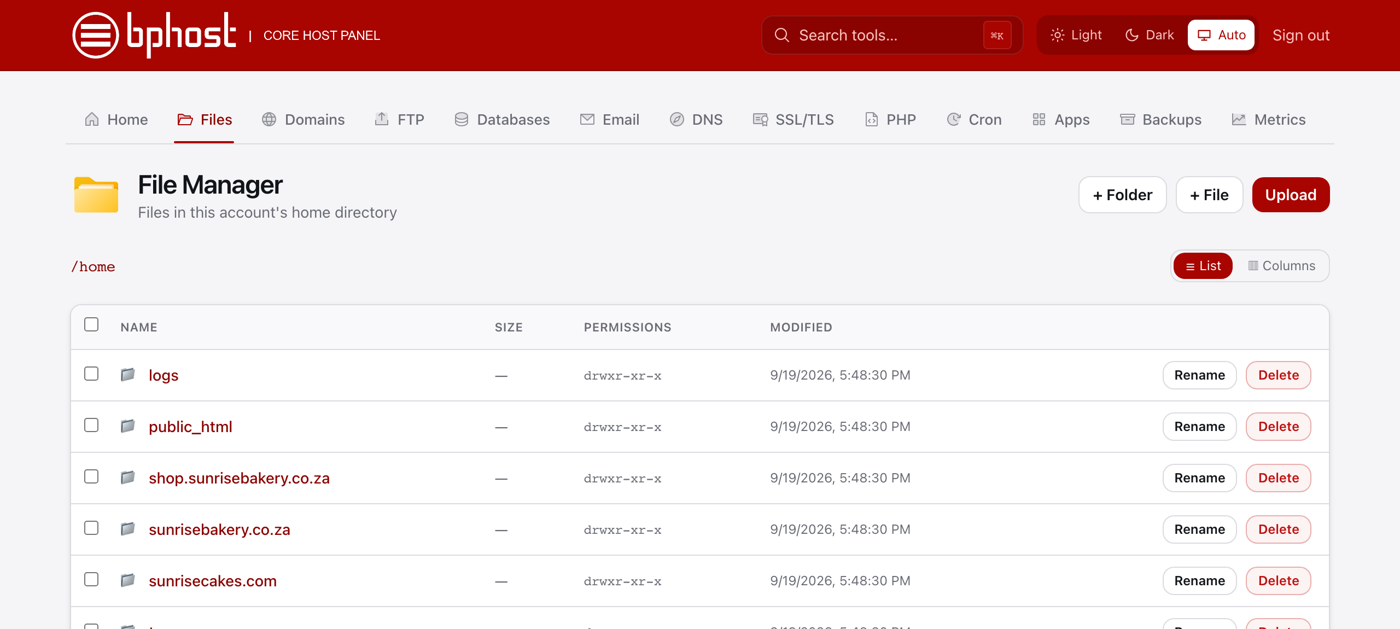
How to upload your website
Once your hosting is active, put your website online by uploading its files to the public_html folder. There are two easy ways: CHPanel's File Manager for most sites, and FTP for very large ones.
Option 1: CHPanel File Manager
- Sign in at chpanel.bphost.biz with your hosting account email address and CHPanel password.
- Open Files → File Manager and click into public_html.
- Click Upload (top right) and choose your files. Each file can be up to 256 MB.
- Uploading a whole site? Zip it on your computer, upload the single .zip, then click Extract on its row — it unpacks in place. Delete the .zip afterwards.
Option 2: FTP
For big sites, or files over 256 MB, use an FTP program such as FileZilla. Create a login under FTP Accounts (see our FTP guide), connect to srv1.bphost.biz on port 21 with FTPS, and drag your files into public_html.
Going live
Your home page must be named index.html or index.php. Addon domains and subdomains each have their own folder (for example shop.yourdomain.co.za/public_html) — upload there instead. Once the files are in place and your domain points to BPHOST, your site is live.
Trouble?
Still seeing the placeholder page? Check the file name, and that the files sit directly inside public_html rather than in a subfolder. Stuck? Open a support ticket.