How to set up an FTP account
FTP lets you upload and manage your website files with a program like FileZilla or Cyberduck. Here is how to create an FTP account in CHPanel and connect with it.
Create the account
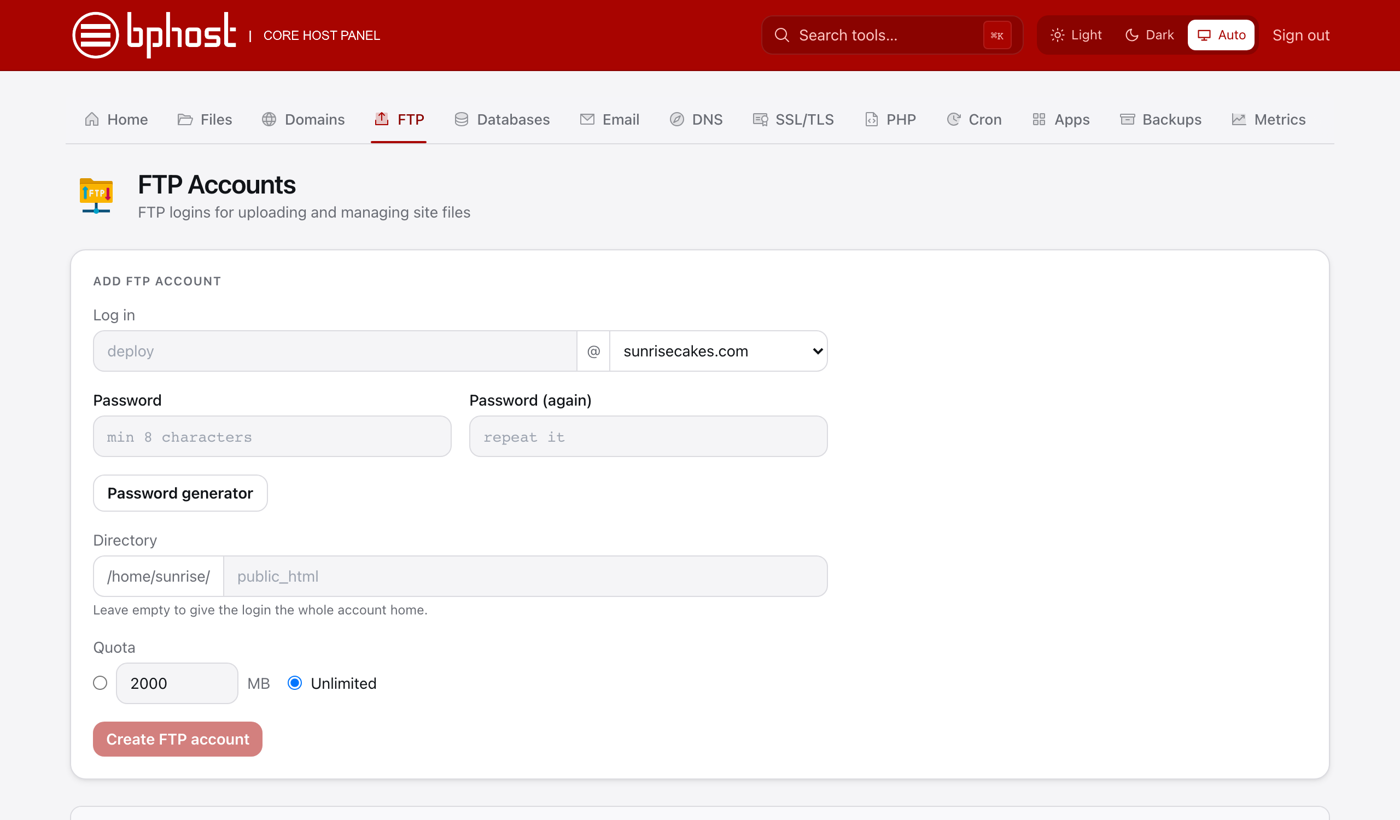
- Sign in at chpanel.bphost.biz with your hosting account email address and CHPanel password, then open Files → FTP Accounts.
- In Add FTP account, type a name in Log in and pick the domain from the dropdown — together they form the username, e.g. designer@yourdomain.co.za.
- Set a Password (the Password generator makes a strong one) and repeat it.
- Directory is pre-filled with public_html, so this login only sees your website files. Leave it empty to give access to the whole account home.
- Choose a Quota in MB or Unlimited, then click Create FTP account.
Connect with FileZilla
- Host: srv1.bphost.biz
- Port: 21
- Encryption: FTPS — explicit TLS over port 21 (plain FTP without TLS is refused)
- Username: the full FTP login, including @yourdomain.co.za
- Password: the one you set
Easier still: click Configure FTP client next to the account to download a ready-made FileZilla or Cyberduck file with these settings filled in. Change password is on the same row if you forget it.
Trouble?
SFTP is only available on accounts with shell access — use FTPS instead. If the connection is refused, check the host name and the TLS setting, then open a support ticket.