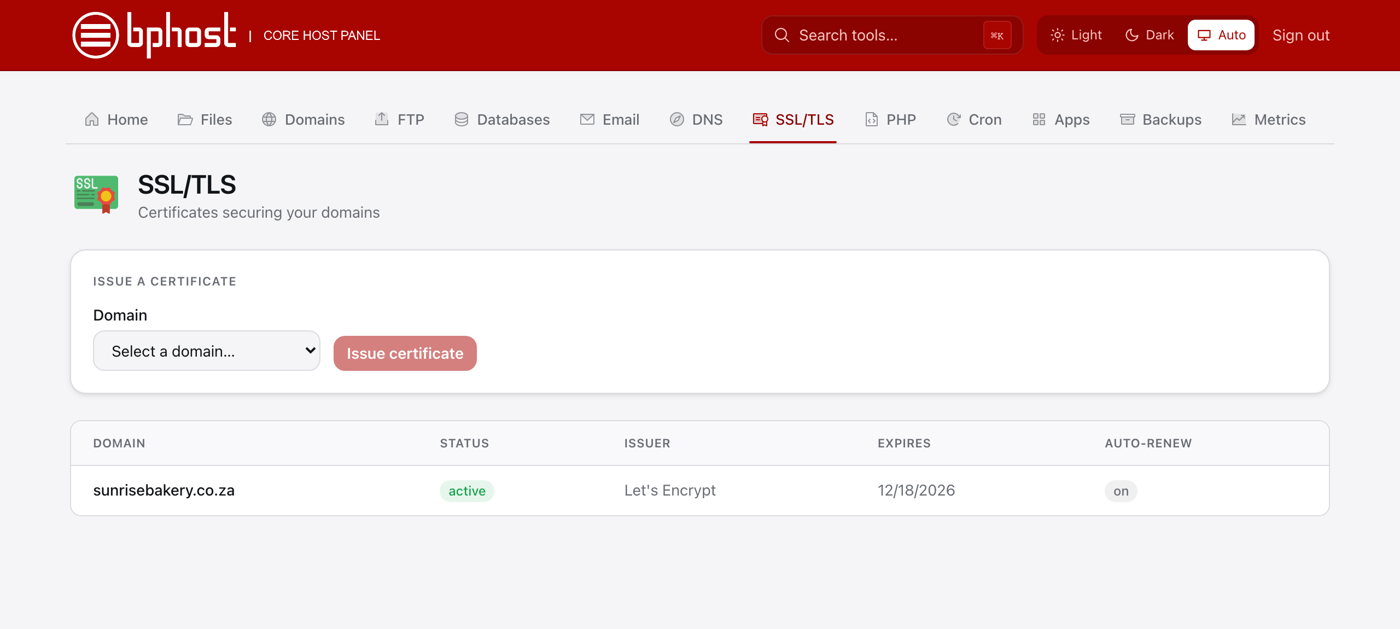
How to install a free SSL certificate
An SSL certificate adds the padlock and https:// to your site, encrypting traffic and building trust. Every BPHOST hosting account includes free Let's Encrypt certificates, issued and renewed from CHPanel.
Issue a certificate
- Make sure your domain already points at BPHOST. Let's Encrypt checks the domain from the internet, so this must be right first.
- Sign in at chpanel.bphost.biz with your hosting account email address and CHPanel password, then open the SSL/TLS tab.
- Under Issue a certificate, choose the Domain and click Issue certificate.
- After a short wait the certificate appears in the list with its Status, Issuer (Let's Encrypt), Expires date and Auto-renew: on. Renewal is automatic — you never do it by hand.
Already done for you?
Domains added in CHPanel get a certificate automatically once their DNS points at the server, so you may find yours already listed.
Force https
Now make everyone use the secure address. Either add a redirect under Domains → Redirects, or edit .htaccess in public_html (File Manager → Edit) and add these lines at the top:
- RewriteEngine On
- RewriteCond %{HTTPS} off
- RewriteRule ^ https://%{HTTP_HOST}%{REQUEST_URI} [L,R=301]
On WordPress, also change both addresses under Settings → General to https://.
Trouble?
If issuing fails, DNS is almost always the reason: wait for a recent DNS change to spread (up to 24 hours) and try again, then open a support ticket.