How to enable two-factor authentication on your account
Two-factor authentication (2FA) adds a second step to login — a code from your phone — so even if someone learns your password, they still cannot get in. BPHOST has two separate logins, and you can protect both.
Turn on 2FA in CHPanel (your hosting login)
- Sign in at chpanel.bphost.biz with your hosting account email address and CHPanel password.
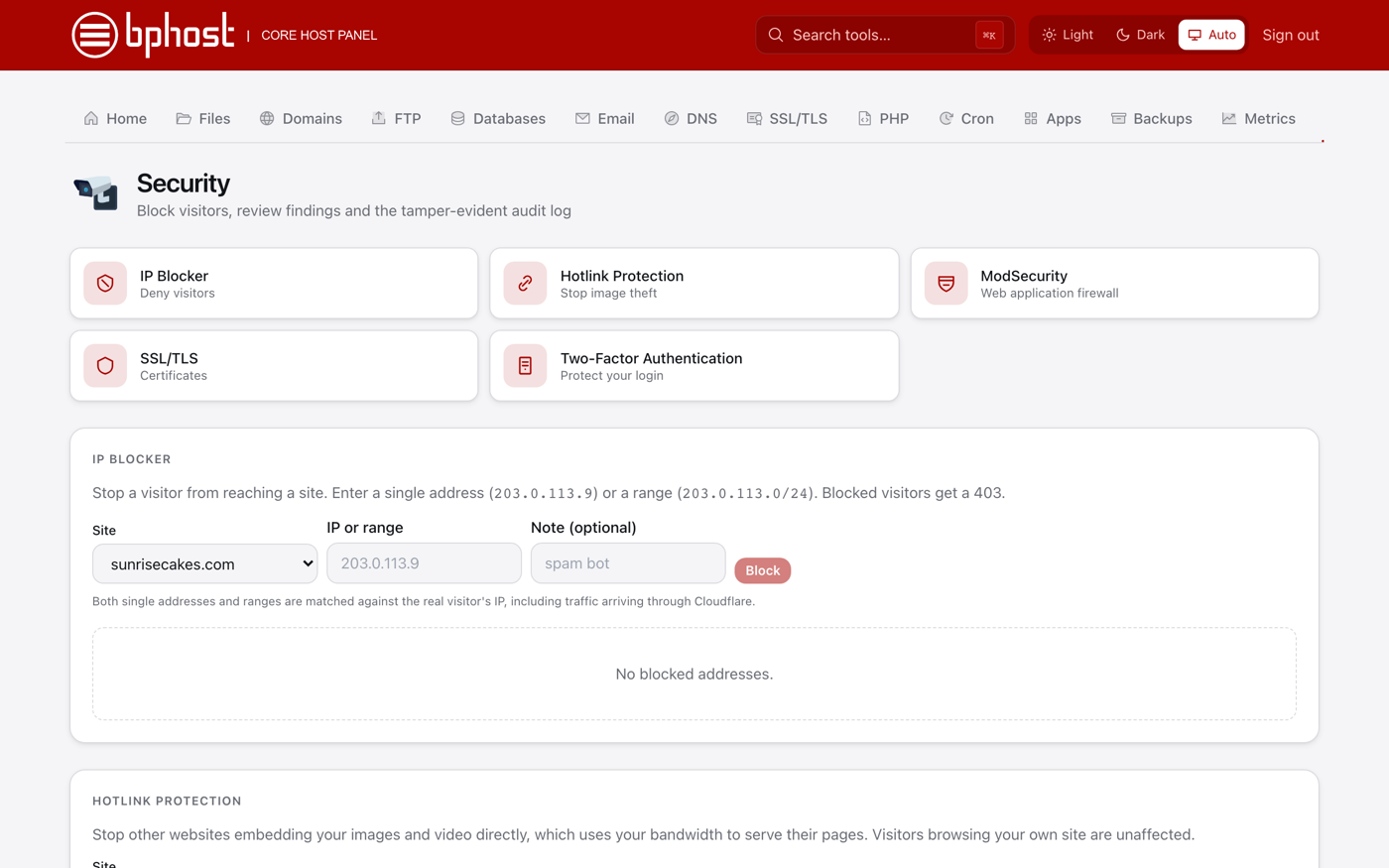
- Open Security → Two-Factor Authentication.
- Open an authenticator app on your phone (Google Authenticator, Microsoft Authenticator, Authy and the like), scan the QR code shown, and enter the 6-digit code to confirm.
- From now on CHPanel asks for a code after your password. On a computer you trust, tick Remember this browser for 30 days so you are only asked from new browsers.
Turn on 2FA in your client area (billing, tickets, domains)
- Log in to your client area.
- Open your account menu, go to the security settings and find Two-Factor Authentication.
- Choose an authenticator app, scan the QR code and enter the code it shows to confirm.
- Save the backup codes somewhere safe in case you lose your phone.
Locked out?
For the client area, use a backup code or contact us to verify your identity. For CHPanel there is no reset link on the login page — open a support ticket from your client area and we will verify who you are and reset it for you.