How to manage your DNS records
DNS records control how your domain works — where your website loads, where email is delivered, and how other services verify your domain. When your domain uses BPHOST's nameservers, you manage these records in CHPanel's Zone Editor.
Before you start
The Zone Editor only takes effect if your domain's nameservers at the registrar are ns1.bphost.biz and ns2.bphost.biz. If your DNS is hosted elsewhere, make the same changes with that provider instead.
Opening the Zone Editor
- Sign in at https://chpanel.bphost.biz with your CHPanel login.
- Click the DNS tab (or the Zone Editor tile under Domains on the Home page).
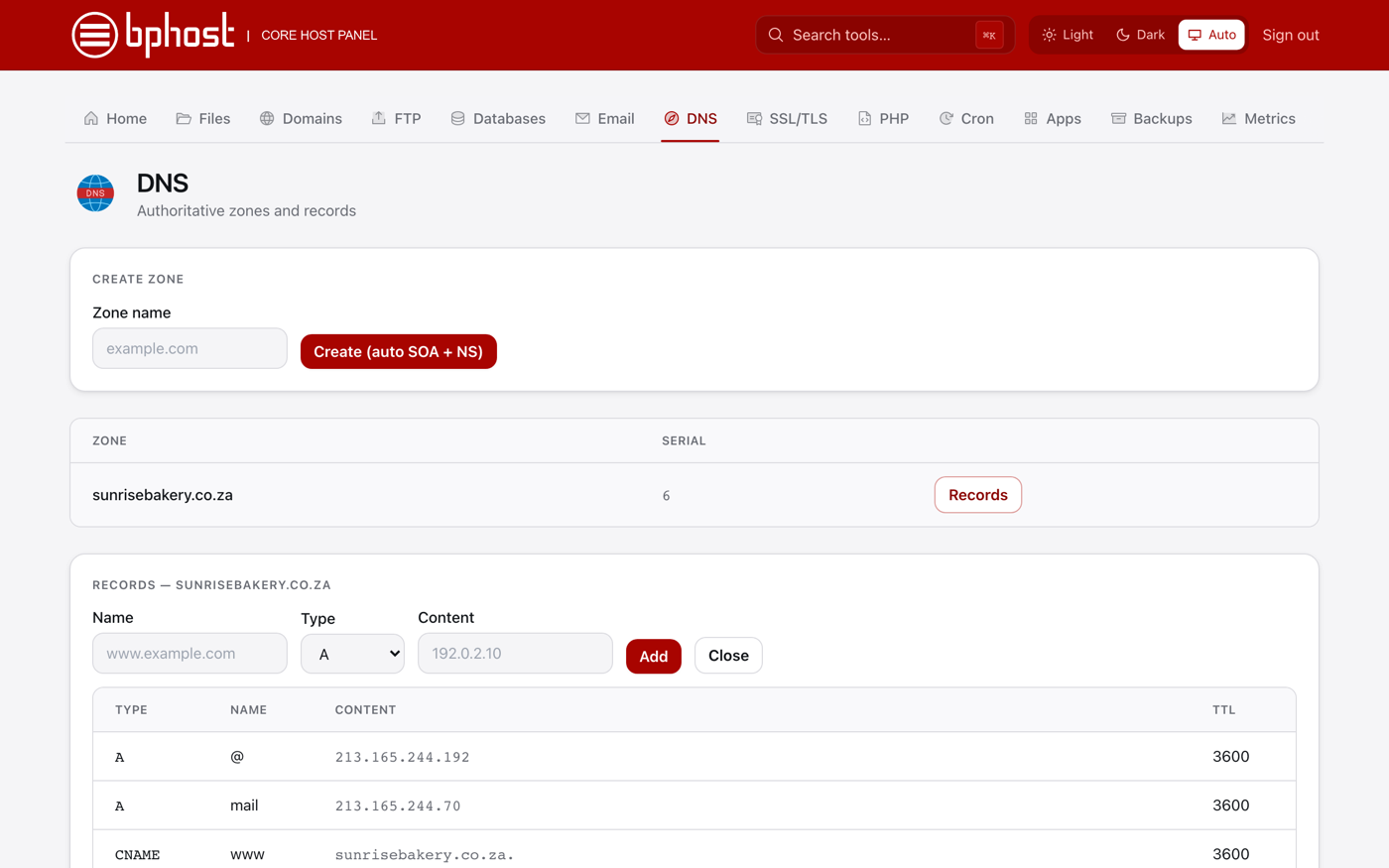
- Find your domain in the zone list and click Records. You will see a table of Type, Name, Content and TTL.
Common record types
- A — points a name to an IP address. The BPHOST web server is 213.165.244.192, and mail.yourdomain.co.za should point to 213.165.244.70.
- CNAME — points a name to another name (for example www to your domain).
- MX — tells the internet which server handles your email.
- TXT — used for SPF, DKIM and domain verification.
Adding or removing a record
- In the add-record form, enter the Name, choose the Type (A, AAAA, CNAME, MX, TXT, SRV and more) and fill in the Content.
- Click Add. To remove a record, use the delete option on its row.
Trouble?
Changes can take a little while to reach the whole internet. A wrong A or MX record can take your site or email offline, so if you are unsure, open a support ticket before you change anything and we will check it with you.